
A candidate file is a form containing candidate information such as personal information, work experience, certifications, references, EEO information, screening information.
A candidate file is organized into three sections:
When opening a candidate file, users are always in view mode and they can from there choose to go into edit mode. This provides a cleaner layout and eliminates the need to "close" the file (to exit out of it and reactivate other buttons on the screen) if only viewing the file. In view mode, only fields for which data is provided are displayed. If a field is empty, it does not display in view mode. The landing tab when opening a candidate file can be configured in the My Setup feature, which is available via the auxiliary navigation bar.
An action bar is available at the top. Users can click an action or use the More Actions menu which is a dynamic menu of additional actions.
Tabs containing candidate-related information are available. The main content of the candidate file is within the Job Submission/General Profile tab, which includes various sections that can be expanded or collapsed. The other tabs contain peripheral information. From the Job Submission/General Profile tab, users can click the down arrow to access a table of contents that allows quick jumping to different sections and sub-sections of the file.
In edit mode, all fields included in the candidate form are displayed. Fields that do not contain data are displayed according to user permissions. Required fields are highlighted with a red asterisk.
From the Job Submission/General Profile tab, users can click the down arrow to access a table of contents that allows quick jumping to different sections and sub-sections of the file.
The candidate card provides quick information about the candidate.
Located on the left pane of the candidate file, the candidate card quickly provides information about the candidate. The candidate card can be "flipped" by clicking its top-right corner.
One side of the candidate card displays information on the general profile of the candidate such as:
The other side of the candidate card displays information on the candidate's job submission(s) such as:
In addition, the candidate card displays links to other submissions of interest. This gives users a quick way of knowing which of the other submissions that have been created are still under "active" consideration. By hovering over the active or inactive link, users are presented with a callout with links to navigate to the relevant submissions. On this listing, there is also a column that indicates the step/status of the candidate for that specific submission. It is therefore easy to see at a glance without having to open and read through the actual submission, if the candidate is at the interview or at the offer stage on another position.
The content of the candidate file left pane (bottom part) is also dependent on the candidate card side selected. For example, the submission date, the source type, the recruiter and hiring manager names can be displayed. A link to any existing offers is also available. Users will only be able to see information on submissions and offers that they are authorized to access.
The content of the candidate file central pane is also dependent on the candidate card side selected. Depending on which side the candidate card is, the information displayed will vary:
The History tab in the candidate file contains a log of all actions performed on the candidate file.
When a candidate file is modified, either by the candidate or a user, an event to track this action is generated and is displayed in the candidate file History tab. The name of the user who performed the action is displayed as well as the date and details on the event. Candidate file tracking events belong to one of the following categories:
Comments relating to an event can be added and edited in the History tab if users have the required permissions.
The Correspondence event category allows users to view previously sent correspondence. A user type permission allows users to resend the correspondence directly from the History tab.
Users can see attachments and offer history tracking if they have the required permissions.
A permission allows Recruiting Center users to view the content of deleted attachments in the History tab. When candidates submit attachments as part of their job application, your organization can remove these attachments. Your organization may decide to not provide access to these deleted attachments which are still visible in the History tab. If you have been granted the permission, you can click the attachment link in the History tab and view the content of deleted attachments. If you do not have the permission, you can see and click the attachment link but the system will display a message indicating that you do not have the permission to view the content of the deleted attachment.
Modifying the Date of an Event
Users can modify the date of an event and specify when an action on a candidate's file really took place, provided the feature has been activated and they have the required permissions. The use of the actual date enables reports to more accurately reflect user activity in the selection process. There might be a number of reasons why users would want to change certain dates in a candidate's file.
Example. If a candidate had an interview on September 15, but that user was only able to enter this information in the system on September 20, the event date would indicate September 20. The user could then change this date to September 15, which would be more accurate. If the date and time related to an event can be edited, they appear as a hyperlink. The event date can only be between the application creation date and the current date.
Hiding Confidential Information
When the value of a confidential field is modified, users who do not have the permission to view confidential fields will not see any tracking event in the candidate file Tracking tab. In Recruiting, fields configured with a Confidential security level can be hidden from users who do not have the permission to view confidential fields. If the value of a confidential field is modified, users who do not have the permission to view confidential fields will not see any tracking event in the candidate file History tab regarding that change. If later on, the security level of that confidential field is changed to General or Protected, users will still be unable to see the change in the Tracking tab.
The table shows the tabs available in the candidate file.
| Candidate File Tab | Description |
|---|---|
| Job Submission/General Profile | Contains information on prescreening, resume, employment preferences, EEO, etc. The contents of both the job submission and general profile are configured by the system administrator. Depending on the candidate card side being viewed, this tab will be either specific Job Submission OR General Profile. |
| Attachments | Contains resume and other attachments provided by the candidate and attachments provided by the user. Attachments are added using the Add Attachment icon. Job specific attachments are clearly identified from other attachments, and the name of the person who attached the file is also indicated. All attachments are managed centrally from this tab and when a user uploads an attachment, the user can specify if it will also be visible to the candidate. |
| Tasks | Contains a list of tasks to perform regarding the candidate. Tasks are self-assigned by users to remind them to complete a future activity. This tab only appears from the Candidate Submission card side. To be displayed, the feature must be activated and users must also have been granted the permission to manage self-assigned tasks. |
| Offers | Displayed if offer management is used. The Offers tab is displayed on a candidate submission once an offer is created. It contains offers submitted to the candidate, offers from competitors, candidate expectations and requisition offer information. |
The Offers tab and offer content are always job specific and visible only from the job submission view.
The candidates list displays candidate file information into different columns and provides tools to filter candidates and to customize the candidates list.
The candidates list is divided into three sections:
The candidate quick search allows Recruiting Center users to quickly find specific candidates.
The candidate quick search is available at the top right hand corner of the Recruiting Center pages. It is available to Recruiting Center users if settings were configured and if user type permissions were granted.
When performing a candidate quick search, the search engine searches for candidates who applied on a job, submitted a profile, or are registered but did not apply on a job (could be a person who referred a friend for a job and who had to register as a new user, or a person who registered while clicking My Account).
The candidate quick search engine searches information in the following fields of the candidate file:
When performing a candidate search, users can enter partial names (either the first or last name with the * wildcard) or complete names in the field. However, a best practice is to enter complete names to obtain better results.
Users can also perform a search with a middle initial if they know the person's full name (example: Sam P Jones). If searching for someone who's first name contains initials, we recommend entering just the initials (example: Jr. will give you the following results: Jr., j.r., or JR).
If looking for someone who hyphenates their name, it is not required to enter both names. Let's say Smith-Jones is the name you are looking for. Entering Smith, Jones, Smith space Jones or Smith-Jones, will bring back Smith-Jones.
The candidate quick search searches for all the search terms in the above mentioned fields. It works only for users having access to all the fields. For example, if the email field is hidden for a user type, searching by name will not work. For this reason, the specific candidate search often produces search results that are more relevant than those generated by the candidate quick search.
Settings allow the activation of this feature.
User type permissions grant users access to this feature.
Users can quickly find a specific candidate file. Candidates who satisfy search criteria are displayed in the search results list.
The specific candidate search can be used when too many results are returned by the candidate quick search. It is considered to be an extension of the candidate quick search in that it offers greater result precision.
The specific candidate search is available at the top right hand corner of the Recruiting Center pages. It is available to Recruiting Center users if settings were configured and if user type permissions were granted.
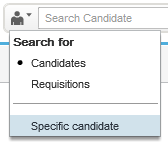
If Recruiting Center users have the permission to access candidate identification information, the candidate search will allow them to search by:
Using the specific candidate search, users can enter the same or different search terms in any of the four fields. For this reason, the specific candidate search often produces search results that are more relevant than those generated by the candidate quick search.
Wild card can be used with one or two characters in the specific candidate search, to support searching for combined words.
For example, d* in first name and monroe in last name will return all monroe with first name starting by d.
A setting allows the activation of this feature.
A user type permission grants users access to this feature.
Users can search for candidates using the First Name, Last Name, Initial, Email Address and/or Candidate ID fields. Candidates who satisfy the search criteria are displayed in the search results list.
The Candidate Advanced Search allows Recruiting Center users to search for candidates using precise criteria in the form of keywords and structured fields.
The Candidate Advanced Search enables users to find and match relevant candidates to their open requisitions. Users can create search queries using keywords to search across numerous text fields of the candidate file and combine them with specific fields such as prescreening questions and skills that typically produce search that have a higher degree of precision.
The Candidate Advanced Search is available at the top right hand corner of the Recruiting Center pages. It is available to Recruiting Center users if settings were configured and if user type permissions were granted.

Because system administrators can customize the Advanced Candidate Search form, the search form might have a different layout in different zones and even for different users, based on their configuration profile.
By default, the following search criteria are included in the Advanced Candidate Search form:
Users who have the required permission can add other search criteria provided they were made available by the system administrator. This is done using the Customize. button. For a list of fields available for the Candidate Advanced Search, see Advanced Search Fields.
For many search fields, users can specify an additional criterion:
Users may also search on precise Organization-Location-Job Field (OLF) elements without incorporating candidates with parent preferences or null values in preferences. When this feature is enabled, if a user is performing a Candidate Advanced Search using Place of Residence as a Required criteria or Organization-Location-Job Field as a Required criteria, search results will display only candidates with an exact match at the same level. No parent or empty value will be returned. For example, searching for San Francisco will no longer return candidates within California, United States or that have an empty preference value.
When users perform a candidate advanced search and enter a value in the Institution, Program, Employer, Job Function or Certification field, the system looks for candidates who have the same value either in the corresponding field or in the corresponding "Others" field.
For example, if a recruiter performs an advanced search and enters "Oracle*" in the Employer field, the system will return candidates who have an Employer field with text starting with "Oracle" or an "Other Employer" field with text starting with "Oracle".
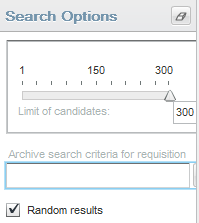
Two search options are available on the left side of the Advanced Candidate Search page: "Archive search criteria for requisition" and "Random results". These options support OFCCP requirements and are usually activated only for customers located in the United States through protected settings. The Archive search criteria for requisition field, once activated, can be optional or mandatory. Once a requisition is entered in this field, the search query and search results are kept in a log file and the retrieved candidates cannot be hard deleted from the database for the next two years. The Random results option generates a different set of candidates who match the required fields every time you run the same search if the total number of candidates matching your criteria is above the number of displayed candidates, usually set to 300. For details, see Search Results Archiving and Randomized Search Results.
When performing a Candidate Advanced Search, the more you add search criteria, the narrower the scope of your search will be, typically resulting in fewer but more pertinent results. By adding multiple occurrences of the same criteria, you broaden the scope of your search, typically resulting in more search results.
A best practice is to start your Candidate Advanced Search with only a few criteria, and to then narrow your search down by going back to your search query and entering one or more additional search criteria. Your search results will then contain fewer candidates. It is simpler and more efficient to start with a general search and narrow down the results to a manageable candidate pool than to start with a tightly defined narrow search and then need to broaden the search in order to obtain a viable candidate pool.
The search engine can retrieve any number of candidate files although, for performance and management reasons, only 300 are displayed. By default, we suggest to display the top 300 by relevancy.
The table presents fields available in the Advanced Candidate Search page.
To be available to Recruiting Center users, these fields must first be made available by system administrators. Then, users who have the required permission can add these fields in the Advanced Candidate Search page using the Customize. button.
Fields available in the Advanced Candidate Search page:
This example shows search criteria used to perform an advanced search and the results of such a search.
After running the above search, the search engine would return the following candidates:
A user type permission grants users access to this feature.
Candidates who satisfy the search criteria are displayed in the search results list.
A user type permission grants users access to this feature.
The value selected for the Last Update and Place of Residence search criteria will be used in all types of candidate search.
Keywords can be used when performing a Candidate Advanced Search.
In earlier releases, when users used the candidate advanced search's Keywords field, the system searched a large number of Candidate Profile fields as well as the five most recently attached files (three attached by candidates and two attached by users). Now, system administrators can configure a setting that will determine the fields that will be searched when using the Keywords field in the Advanced Candidate Search form. The setting can be set to Optimal (default value) or Legacy. The Legacy value should only be chosen to revert to original list of profile fields used prior to 13C – primarily to include "comments" in keyword search.
The table shows the fields searched by the candidate advanced search's Keywords field whether the setting is set to Optimal or Legacy.
Personal information fields:
Personal information fields:
Text-based user-defined field answers.
Pasted cover letter from the general profile.
Pasted resume from the general profile.
Career objectives from the general profile.
Additional information from the general profile.
All file attachments from the candidate provided the attachments have one of the following supported file formats:
The three most recent file attachments per candidate:
The two most recent file attachments from users (displayed in the Attachments tab), limited to supported file format type.
Education [Institution, Program, Other institution, Other Program and text-based user defined fields] from the general profile.
Work Experience (Employer, Job Function, Other Employer, Other Job Function, Achievements, and text-based user defined fields) from the general profile.
Text-based answers to questions from the library.
Keywords and Boolean Operators
Keyword search is considered to provide exact matches. However, if a user includes OR in a search query, the search engine looks of course for exact matches for one word or the other. Boolean operators are pretty straightforward but when a complex search query using multiple Boolean operators is incorrectly formulated, results are unpredictable. The Keywords search supports the following boolean operators:
Operations enclosed in parentheses are performed before other operations. For example, a search query for candidates who worked as marketing or advertising consultants could look like the following: (market* or advertis*) and (consult* or agent or representative). The search engine would retrieve candidate files that satisfy the two conditions:
The wild card "*" (asterisk) can be placed at the end of a word. For example, a search for comput* will retrieve all words that begin with comput such as computer, computing, computers, computation.
Wild cards within double quotation marks are not supported.
Note: An update to the Lucene search server engine slightly modified the behavior when using the wild card * in the quick search, specific search, and advanced search. If the number of words returned by the query reaches 5000, no warning message will be displayed asking you to refine the search. Be aware that it might take a while for the search engine to return any result when the query is too generic. Also note that when performing a quick search using the wild card * at the beginning of a word, such request is heavier on the search server and you might have a longer response time.
You can use double quotation marks to search for a specific string. For example, if you wanted to find product managers but not product specialists who are also assistant managers, you could type "product manager" ( with the double quotation marks).
Note: You need to type the double quotes in the Keywords field; do not copy them from other applications such as Word and paste them into the field. Also note that double quotes can vary from one keyboard language to another. If you use a French keyboard and use these «quotes», the search engine does not recognize them as double quotes in the Keywords field.
Keywords and Stop Words
Stop words are indexed in the Keywords field when doing an advanced candidate search. Stop words are small words not included in the index and excluded from a search because they are not considered to be significant. For example, words such as "no, not, the, one, and, or" and all single letters are stop words.
Stop words are considered by the system when placed within quotation marks or parenthesis. For example, when users are searching for "The Store" placed within quotation marks or parenthesis, the system will consider the stop word "the". When users are searching for The Store without quotation marks nor parenthesis, the system will ignore the stop word in the query.
Keywords and Special Characters
In general, special characters used as punctuation or separators are not included in the search index and cannot be used to retrieve information. This is the case for the following characters:
Note: Exception: When used in email and phone number fields, some special characters are supported. For example, john.smith@taleo.net is supported as is, because the system recognizes this is an email address.
Keywords and Exact Term
When you perform a Keywords search with Exact Term selected, words that match exactly the terms you entered are returned and highlighted. You can use the wild card *, quotation marks, parentheses, and Boolean operators (AND, OR, NOT) to construct sophisticated candidate search queries. The system applies the AND operator between words.
Keywords and Related Terms
The OR operator is applied transparently when the Related Term option is selected. The search engine searches for occurrences of the word you entered but also searches for occurrences of related terms determined by the system. Such related terms might be particularly relevant to your search while other related terms might be less pertinent.
You should use the Related Terms feature when your initial query did not retrieve a lot of candidates. The Related Term feature enables you to retrieve candidates whose file contains a word that is similar in meaning to your search word in addition to candidates whose file contains your exact search word. In addition to retrieving similar words, it retrieves words with the same first 6 letters, since those words are most likely in the same family. For example, if you search for "Administration" using related terms, the engine will also search for "administrative", "administrator", etc.
Keywords and Conceptual Search
The conceptual option for the advanced search is available if your system administrator has activated the proper setting.
The conceptual search is an extension of the related term search, where instead of finding variations of entered words, the system automatically finds the right concepts to search for based on the text provided and then broaden its search. The conceptual search allows you to use large blocks of text (typically from a candidate's resume or a job description) to search for candidates. Conceptual search is typically the best tool to use when searching for candidates with attached files. This tool can be used when you are viewing a relatively large amount of text regarding particular sections of a candidate's resume such as experience and education, or a job description and you want to know if there are other candidates whose records contain similar information. For details, see Conceptual Search.
Keywords and Highlighting
Keyword highlighting is activated by your system administrator and is limited to Advanced Search results. Each occurrence of the keyword is highlighted in yellow on all tabs in the candidate file and in the attached files. Up to fifty different terms can be highlighted. A private setting is used to limit the number of highlighted words (contact Oracle Support for details). The search will highlight words together when the search keyword includes double quotes, to better match what is really retrieved by the search engine. For example, searching for "product manager" displays only candidates with "product manager" in their file. Words are highlighted throughout the entire candidate file, even the labels, so some of the highlighted words are not used to retrieve the candidates.
Note: When performing a candidate advanced search with the Keywords field, an entire word or 3 characters with a wild card (*) can be used as a keyword.
If your company is using specific fields to capture experience or competencies, using the corresponding fields will generally produce better results than using the Keyword search.
For example, an advanced search that included java skills in the competencies section of the search page and specifying both a minimum proficiency and experience level would retrieve candidates who met those criteria. A Keyword search for "java", on the other hand, might include candidates who liked this type of coffee in addition to candidates who had experience with the java programming language.
There is an important "logical" grouping function that applies only to structured data.
For example, if you wanted to search for candidates who had obtained a Master's degree in business administration from Harvard University, this would be possible using the Education block. If you used the Keyword search, however, to search for "Harvard university masters business administration", the search results might include candidates who were studying in sociology at any university but living in Harvard, Illinois and considered themselves "masters" in business administration!
In conclusion, the use of structured fields can significantly reduce the number of irrelevant search results.
When performing a Candidate Advanced Search, it is possible to use multiple occurrences of the Education and Work Experience blocks.
When using multiple blocks, the OR operator is used.
If you use multiple occurrences of blocks, care should be taken in choosing fields and in making selections from the Required, Desired and Excluded options.
The following examples demonstrate how multiple Education blocks can be used to perform highly precise searches. The same principles apply to multiple Work Experience blocks.
Example 1: In this example, the search results would contain either candidates with a Bachelor's degree in computer information systems and a GPA between 3 and 4, or candidates with a college diploma in computer information systems and a GPA between 3.5 and 4. Both Education blocks are Required.
| Education Block 1 - Search Field | Education Block 1 - Search Value |
|---|---|
| Education Block 1 | Required |
| Program | Computer Information System |
| Education Level Achieved | Bachelor's Degree |
| GPA is at least | 3 out of 4 |
| Education Block 2 - Search Field | Education Block 2 - Search Value |
|---|---|
| Education Block 2 | Required |
| Program | Computer Information System |
| Education Level Achieved | Associate's Degree/College Diploma |
| GPA is at least | 3.5 out of 4 |
Example 2: In this example, the search results would contain only candidates with a Bachelor's degree in computer information systems and a GPA between 3 and 4. Candidates who studied at McGill University—regardless of the program, education level, and GPA—would appear higher on the results list than those who had never attended the school. The first Education block is Required and the second one is Desired.
| Education Block 1 - Search Field | Education Block 1 - Search Value |
|---|---|
| Education Block 1 | Required |
| Program | Computer Information System |
| Education Level Achieved | Bachelor's Degree |
| GPA is at least | 3 out of 4 |
| Education Block 2 - Search Field | Education Block 2 -Search Value |
|---|---|
| Education Block 2 | Desired |
| Institution | McGill University |
| GPA is at least | 3.5 out of 4 |
Example 3: In this example, the search results would contain only candidates with a Bachelor's degree in computer information systems and a GPA between 3 and 4 provided they never attain McGill University. The following candidates (among others) could conceivably appear in the search results:
| Education Block 1 - Search Field | Education Block 1 - Search Value |
|---|---|
| Education Block 1 | Required |
| Program | Computer Information System |
| Education Level Achieved | Bachelor's Degree |
| GPA is at least | 3 out of 4 |
| Education Block 2 - Search Field | Education Block 2 - Search Value |
|---|---|
| Education Block 2 | Excluded |
| Institution | McGill University |
| Program | Computer Information System |
| Education Level Achieved | Bachelor's Degree |
| GPA is at least | 3 out of 4 |
The first Education block is Required and the second one is Excluded.
When performing an advanced search, Recruiting Center users can select a reference location or a location defined by their organization when searching for candidates.
For searches using locations, the accuracy of the results will depend on the accuracy of the information provided by your organization when defining the locations. To obtain more granular radius searches (for example, within 5 miles or 10 miles), your organization should have work locations defined with address level information to improve the accuracy of the search results.
Candidates retrieved by the advanced search may differ depending on different scenarios.
For most clients, the default maximum number of retrieved candidates is set to 300. Some clients are using a smaller set, usually because they consider those candidates are typically qualified for a specific position. Regardless of the number of candidates matching the search criteria, if the query does find more than the maximum number, which candidates are actually displayed in the advanced search results?
There are three scenarios:
The randomized search result feature allows Recruiting Center users to specify that the information contained in the advanced search result list be returned in random order.
The randomized search results feature supports requirements from the Office of Federal Contract Compliance Programs (OFCCP) and is usually activated only for customers located in the United Stated through protected settings. Randomized search means that candidates displayed in the advanced search result list are picked randomly in the overall list of candidates matching search criteria. An advanced candidate search done with randomization will return a list of 300 candidates or less, but instead of displaying the first 300 candidates, it will display any 300 of the matching candidates, with no predetermined priority, and will sort them based according to the sorting criterion set for the list. Any candidate matching the search criteria can be returned.
Note: The Random results option continues to be available for both the Exact term and Related Terms keyword search. For customers who have the Search Randomize Enabled setting set to Yes, the Random results option will be selected by default for both the Exact term and Related Terms keyword search. In these types of search, if the number of matches is higher than the limit of returned results, the system will return a random set of results from the matching set. Conceptual Search analyzes a relatively large amount of text when performing a broad match against the candidate database. As such, this type of search is used to discover hard-to-find candidates and is not a tool to exclude candidates. The search results from a Conceptual Search only make sense when they are ranked in order of relevancy and as such is incompatible with the Random results option.
This feature supports OFCCP requirements and is usually activated only for clients located in the United States through protected settings.
The search result archiving feature allows Recruiting Center users to select the requisition for which they want to archive search criteria and results.
The search result archiving feature supports requirements from the Office of Federal Contract Compliance Programs (OFCCP) and is usually activated only for customers located in the United Stated through protected settings. When performing an advanced search, search criteria and/or results are archived in the database. The information is kept in the database for two years for audit purposes and prevents candidates from hard deletion.
When the feature is activated, all search results, even those done for requisitions outside the US will be archived.
This feature supports OFCCP requirements and is usually activated only for clients located in the United States through protected settings.
Once a requisition is entered in this field, the search query and search results are kept in a log file and the retrieved candidates cannot be hard deleted from the database for the next two years.
Certain elements could have an impact on advanced search results.
Data segmentation : If your organization has activated data segmentation, this might exclude a lot of candidates from your search results. For this reason, it is important to verify if your organization has implemented such restrictions and, if this is the case, ask how they affect which candidates you are entitled to view. There are two dimensions to data segmentation: a user type permission whereby the candidates displayed to a user are determined by the person's staffing type; and the Organization, Location and Job Field (OLF) associated with groups that the user is a member of. While it might be easy to manage only a few groups around specific organizations, the effect of segmentation can be difficult to clearly understand if users are associated with multiple groups incorporating various OLF. Ask your system administrator if the Activate Segmentation in Search setting was activated.
Incomplete submissions : Many candidates never complete their submissions for various reasons. An incomplete general profile will not be retrieved during a search if your organization has configured the system that way. In average, 33% of candidates might not have completed a job specific submission or a general profile. An interesting alternative to not displaying such candidates is to display them and add an Incomplete Submission column.
Remember that the "incomplete submission" flag refers to the online submission process, not to the completeness of the candidate file overall. If your organization does not display incomplete submissions, incomplete submissions that might contain a lot of information are obviously not displayed. On the other hand, you might have partial submissions, that were captured or imported, and those partial submissions have the "complete" flag, even if only few fields were captured. Thus, incomplete submission refers to online submissions or online profiles that have not passed the submission page, regardless of whether all the content has been provided or not. Ask your system administrator if the Display Incomplete Application Protected setting was activated.
Identification missing : "Identification missing" candidate files are missing a candidate's first and last name and do not have the official "anonymous" flag. Ask your system administrator if the Display Identification Missing Candidates setting was activated.
Excluding candidates in selection process : Candidates who are in a selection process associated with an open requisition can be excluded from search results. Ask your system administrator if the Candidate Search Mask Processed setting was activated.
Excluding candidates in selection process who have attained or proceeded beyond a specific status : The Threshold CSW Step - Hide from Search setting indicates the CSW reference model step at which, once reached, candidates will be excluded from search results (unless the user type has overriding permission). Candidates are excluded from search results once they have reached the threshold step or when they are at a step that comes after the threshold step in the reference model sequence. Ask your system administrator if that setting and user permission were activated.
Matching the place of residence : By default, when a user searches for candidates associated with a specific place of residence, the system retrieves candidates associated with a "higher" location in addition to the specific location (place of residence). It is recommended that you include "higher" levels (country and state/province) because even if in theory candidates do have all levels (down to region), some might not. Exceptions are:
The number of exceptions should be less than the number of candidates with an exact match and Oracle feels it is fair to retrieve those candidates who never had the opportunity to indicate their structured place of residence. Some Oracle customers might want to change this setting however.
Conceptual Search is an alternative way to search candidate files that broadens the search result by including documents that are similar based on concepts and proximities. The retrieved documents do not need to contain everything entered as search criteria, only related concepts.
In a Conceptual Search, most of the structured data elements are not part of the candidate file and are leveraged by the Advanced Search engine. Although Conceptual Search might be the preferred search method of some users, the Conceptual Search engine was built to complement the Advanced Search. Advanced Search can retrieve candidate files with more precision, using mandatory criteria used to source candidates for a specific requisition and can clearly define the required criteria set for a specific job. But what if you don't have precise criteria for a search? What if you have candidates without structured data and who have simply a pasted resume or an attached file? Or perhaps you cannot find any candidates using the Advanced Search and want to know what your database holds with regard to a hard-to-fill job description or candidates used as a basis to find other candidates. These are scenarios for which the Conceptual Search is most suitable.
Once the Conceptual Search module is enabled, the system administrator can control which users will have access to Conceptual Search by granting them a user type permission.
The Conceptual Search is available via the Advanced Search. When selecting the Conceptual option, users must enter significant text in the Keywords field (typically taken from a candidate's resume or a job description) to search for candidates. The search engine then looks through the following content of the candidate file:
Pasted resume from the general profile.
Career objectives from the general profile.
Additional information from the general profile.
Education (Other Institution, Other Program, Education Level (Achieved), and text-based User Defined Fields) from the general profile.
Work Experience (Other Employer, Other Job Function, Achievements, and text-based User Defined Fields) from the general profile.
Text-based user-defined field answers.
The last three attachments per candidate provided the attachments use one of the following supported file formats:
On top of that, users can increase the Conceptual Search with any specific search criteria made available to them. This provides the possibility to mine the database on various concepts to find interesting candidates, but also restricts the result with more precise criteria, which was not available before.
The conceptual search cannot retrieve disqualified candidates because they are not indexed in the database.
Below are a few tips when using Conceptual Search.
Tip 1: Provide enough text in the Keywords field
If you only need to type a few words, it is usually advisable to perform a Keyword search or Related Terms search instead of a Conceptual Search. The Conceptual Search analyzes a text, extracts the most significant elements and compares them with significant words and relationships between words extracted from a sample of about 100,000 candidate files from your database. The system discards non-significant words from its reference list in the knowledge base. A word used by only a few candidates or another used by almost all candidates might not have any weight in the Conceptual Search "brain".
For example, if you searched for the word "consultant" in a consultant database, then the word would occur so many times that it might not even share any concept with other words. The search engine would perform a search using the exact word "consultant" and most or all of the candidates would have this criterion.
If you performed a Conceptual Search using only a few words, chances are that some of the words would be non-significant. You would better off pasting entire paragraphs and let the system determine what is important in each one and identify the best candidates based on this information.
Tip 2: Sort results by decreasing relevancy
The Conceptual Search engine tends to retrieve a lot of candidates. What distinguishes them is the relevancy between the candidate file and the Conceptual text box. You will typically want to sort the retrieved candidates from most relevant to least relevant.
